This page explains the features that are specific to lesson plans. For help adding or formatting paragraphs, headings, images, and other content, see How to Edit Content.
Lesson Plans and Book Pages
Book Pages contain the detailed subject information used throughout My CFI Book. Lesson plans organize how that information will be taught. A lesson plan adds the objectives, instructor guidance, scenario, assessment, and other parts of the lesson, then uses selected Book Page material for the lesson presentation or briefing.
If a change belongs in the subject explanation wherever it is used, edit or customize the corresponding Book Page. If the change applies only to a lesson's outline, teaching sequence, or selected references, edit or customize the lesson plan.
Create or Customize a Lesson Plan
- To customize an existing lesson plan, open the lesson and select Customize.
- To create a lesson plan, open the dashboard and select Lesson Plans, then Add New.
New lesson plans begin with a standard aviation lesson-plan template. The template is a starting point: every section is optional, and sections may be added, removed, or rearranged to fit the lesson.
Basic Lesson Plan Sections
A lesson plan may include the following sections:
- Introduction: Briefly establishes the lesson's importance, gains attention, and motivates the learner.
- Objectives: Identifies the knowledge or skills the learner should demonstrate, the conditions involved, and the expected level of performance.
- Teaching Strategy: Provides instructor-focused notes about teaching methods, related topics, instructional aids, or learner needs.
- Lesson Presentation or Lesson Briefing: Organizes the selected Book Page material used to teach the lesson.
- Scenario: Places the lesson in a realistic situation that requires the learner to make decisions.
- Case Studies: Uses relevant real-world events to reinforce the lesson.
- Resources: Lists source material and resources for further study.
- Schedule: Outlines the lesson sequence and the expected time for each part.
- Equipment: Lists the teaching materials, instructional aids, and equipment needed for the lesson.
- Review and Assessment: Identifies the important points to review and the questions or tasks used to assess the learner.
- Completion Standards: Describes the knowledge and skills required to complete the lesson at the learner's current stage of progress.
Edit the Lesson Presentation
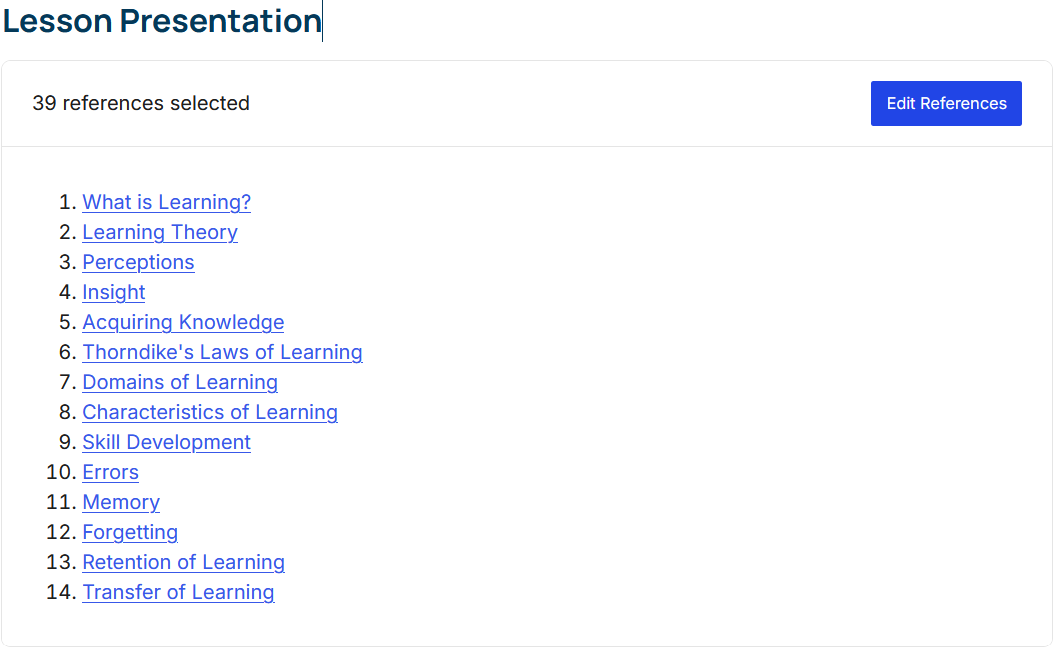
The Lesson Presentation section, or Lesson Briefing for flight lessons, contains the Book Page references used by the lesson. The outline shows the current selections in presentation order and updates when the selections change.
Open the Reference Selector
In the lesson editor, locate the Lesson Presentation or Lesson Briefing. The outline displays the number of selected references and a preview of their order. Select Edit References to change the selection.
Choose Book Pages and Topics
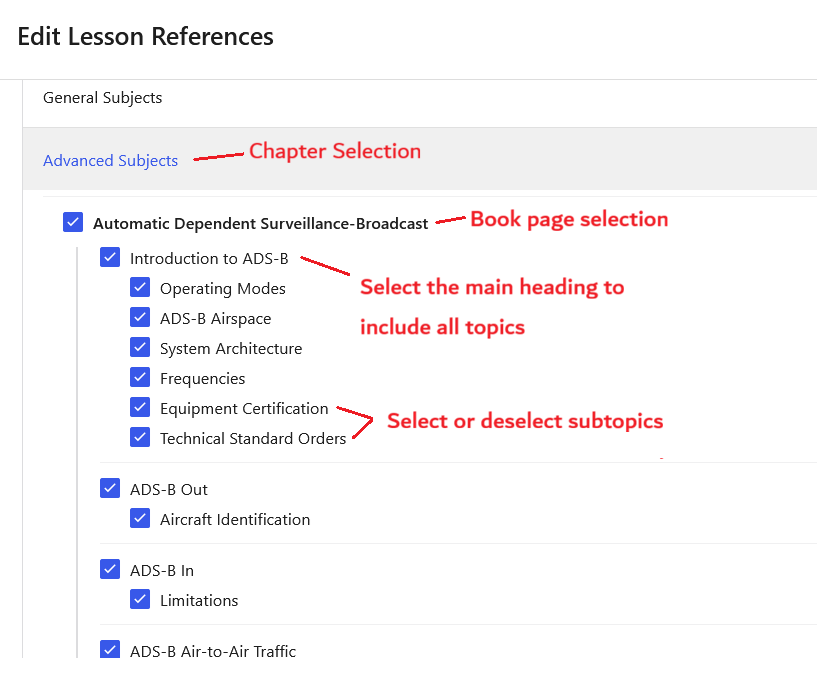
The reference selector organizes the available material by chapter, Book Page, main heading, and subtopic.
- Open the chapter that contains the material you need.
- Select a Book Page to include its available topics.
- Keep the main headings and subtopics that belong in the lesson, and clear the ones that are not needed. Selecting a main heading also selects its subtopics. Selecting an individual subtopic keeps its main heading so the material retains its context.
- Use the search field when you know the chapter, Book Page, or heading title. Changing the visible search results does not remove selections that are temporarily hidden.
- Review the selected-reference count, then select Apply at the top or bottom of the window.
Apply and Save the Selection
Apply returns you to the lesson editor and refreshes the outline preview. It does not save the lesson by itself. Review the updated outline, then select Publish or Update in the lesson editor to save the changes. Select Cancel instead of Apply if you want to close the reference selector without using the changes made there.
Reorder Lesson References
The order shown in the Lesson Presentation or Lesson Briefing controls the order of the selected material. Drag a reference title up or down to place it where it belongs in the lesson. Its selected subtopics stay with the main heading.
- While editing: Arrange the titles in the outline preview, then select Publish or Update to save the order with the lesson.
- While viewing a lesson: Members with editing access can arrange the titles directly on the displayed lesson. The new order is saved automatically.
For most members, arranging an unchanged site lesson creates a personal order without changing the site original. Returning every title to the site's current order removes that personal order, allowing future site changes to be used automatically.
Drag-and-drop sorting may not be available on some small or touch-based devices. Use a desktop or laptop computer if the titles cannot be moved.
How Lesson References Are Used
- Website and PDF: The Lesson Presentation or Lesson Briefing provides an outline, followed by the selected Book Page content.
- Slideshow: The applicable selected Book Page content supplies the instructional slides.
Because the lesson references Book Page material instead of copying it, updates to the source material can remain consistent wherever that material is used.